A fun and engaging way to assess student knowledge and application is to allow students to create a project based on any given topic. A common project for students at all grade levels is to create their own newspaper. The following link offers templates for Google documents for students of all ability levels. Working in pairs or individually students can create their own newspapers based on social studies and science topics (expository writing), review of books, an op-ed (opinion/argumentative), or report on current events (expository, cause/effect). Printing and displaying on walls, creating online portfolios of work, and peer sharing are some ways to disseminate their work.
Please let me know how these work out for you. I would love to see the student's work and share some pictures of their work here.
Be well.
Showing posts with label Google. Show all posts
Showing posts with label Google. Show all posts
Tuesday, February 13, 2018

Friday, October 27, 2017
Performing Arts in 360 Degrees
Experience Performing Arts in 360 Degrees
 Performing Arts, part of the Google Cultural Institute, is a website that allows you to experience music, opera, theater, and dance in 360 degree images and videos.
 Friday, October 13, 2017
A Google A Day
I am loving this site, www.agoogleaday.com , as quick Do Now activity, or a What Can I Do Now? This would be great for grades 3 or 4 and up due to some of the older content. Have you students practice their research skills using Google by answering questions, earning points, in a timed manner. Check it out and see how you can start using it today. A fun way to infuse current events as well.
Monday, October 9, 2017
Google Help: Black Menu for Google
I wanted to share with you an excellent Google Extension I have been using for over a year. It is called Black Menu for Google. When you go to Google Web Store and search Black Menu for Google.


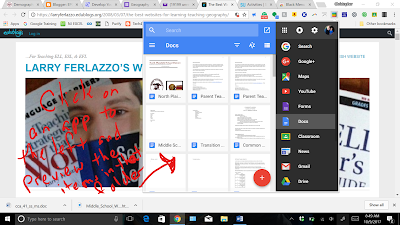

When in use and you click the icon, you will have a drop-down menu that looks like this:

Customize the scrolled menu on the right by scrolling all the way down and clicking add. Your dropdown will look like this:

When you click on one of the apps on the right, all the items of that kind will appear on the left side of the drop-down. Here, you can scroll through all the items of that time (Documents, Sheets, Slides, Drawings, etc.) Or, you may click the button at the bottom right corner of that window to create a new. You can even compose a new email with Google email in the drop-down menu.

This is a great tool to use if you don't want to open a new window and search for your items or create a new one. It is quicker and easier, in my opinion, to use and makes your work more effective.
Go ahead, give it a shot. My students have been using it for the last few weeks and have been able to find items a lot quicker, saving on class time.
Have fun.
Wednesday, September 20, 2017
Teaching Strategies -- Teacher Tech: How the Google Suite Can Enhance Open-Ended Math Exploration
How the Google Suite Can Enhance Open-Ended Math Exploration
 (iStock/shironosov)
Subscribe to:
Posts (Atom)